
You plug the same chicken recipe into three nutrition calculators and get three answers. 455 calories. 720 calories. 851 calories.
There’s quite a difference between those! Miscalculations usually happen because the tool guessed wrong. “Chicken” gets matched to whole chicken with skin instead of skinless breast, or the database picks a cooked entry when you measured raw.
The fix is a calculator that makes ingredient checking quick, and for a single recipe, WP Recipe Maker’s free recipe nutrition calculator is the place to start. If you publish recipes, some WordPress recipe plugins run the same check inside your recipe editor, so you can verify matches without copy-pasting everything into yet another app.
Calculators match each ingredient to an entry in a food database such as USDA FoodData Central, so a result is only as good as those matches, the weights you enter, and the cooking fats you include. Which tool suits you depends on the job: free web calculators handle one-off recipes, tracking apps handle daily logging, and WordPress recipe plugins handle the nutrition labels you publish.
Why nutrition calculators show different numbers
A nutrition calculator is meant to estimate the nutritional values of a recipe based on the ingredients and quantities you enter. It pulls data like calories, protein, carbs, fat, and micronutrients from food databases, then adds everything together to give you per-serving totals. It’s an estimation tool, not a lab test, which means the results depend heavily on how ingredients are interpreted behind the scenes.
Nutrition calculators don’t read your recipe the way a human would. They match each ingredient to a database entry, and that’s where things go a little wrong. A single word like “chicken” can link to several options, and the tool’s first pick isn’t always the one you meant. Multiply that across a full recipe, and the totals drift quickly.
The database itself can also change the outcome. Raw and cooked ingredients don’t weigh the same, so choosing one over the other can shift the numbers. Small additions like oil, butter, or sauces may seem minor, but they add calories quickly. Packaged foods add another variable, since nutritional values can vary by brand even for items with the same name.
You might also see the 4-4-9 rule mentioned as a simple way to estimate calories. It’s based on the idea that protein and carbohydrates provide about 4 calories per gram, while fat provides about 9. This is useful as a rough mental shortcut, but it’s not how most calculators actually work.
Instead, most nutrition calculators use the Atwater system. This method assigns calorie values to nutrients based on how the body typically digests and absorbs them. Because digestion isn’t perfectly efficient – and because foods contain a mix of nutrients, fiber, and water – the results are always estimates rather than exact figures.
That’s why two tools can show different totals for the same recipe, even when you’ve entered everything carefully. The math is consistent, but the assumptions behind it aren’t identical.
Generally speaking, if you want accuracy, use grams, stay consistent with raw or cooked, include cooking fats, and check the ingredient matches. If a tool shows you those matches, you’re already halfway to better numbers!
Understanding calculator types
Recipe nutrition tools usually fall into four buckets, and the best one depends on what you’re trying to do:
- Free online calculators are great for quick, one-off nutrition labels. They’re fast, but they can be hit-or-miss if they hide ingredient matches.
- Mobile tracking apps are built for day-to-day logging. They’re handy if you want to track what you ate, but recipe building and label output can feel secondary.
- WordPress recipe plugins are made for publishing. Some include built-in nutrition calculation, while others rely on integrations or manual entry. When available, nutrition is calculated right where you write the recipe and displayed on the post, which makes editing and re-checking much easier.
- Professional nutrition software is for compliance and documentation. It’s built for dietitians, food businesses, and regulated labeling needs.
| Calculator type | Best for | Typical cost | Strengths | Limitations |
| Free online calculators | One-off nutrition checks or quick labels. | Free | Fast to use, no setup, good for rough estimates. | Ingredient matches are often hidden, limited editing, inconsistent results. |
| Mobile tracking apps | Daily food logging and personal tracking. | Free-$20/month | Large food databases, convenient for logging meals. | Recipe building is clunky, nutrition labels aren’t the focus. |
| WordPress recipe plugins | Food bloggers and recipe publishing. | Free-$100/year | Built into recipe writing, editable ingredients, displays nutrition on posts. | Depends on database quality and setup. |
| Professional nutrition software | Compliance, food businesses, regulated labels. | $30-$200+/month | Detailed reporting, brand-level accuracy, audit trails. | Overkill for home cooks and bloggers. |
Some tools use the USDA FoodData Central for whole foods like fruits, vegetables, and raw ingredients. The downside is that these entries are often generic, so they may not reflect how you actually cook or the products you use. Other tools pull from mixed databases that include branded foods and packaged items, which can be more realistic but also introduce inconsistencies if entries aren’t well reviewed.
What matters for you is visibility. A calculator that shows exactly which database entry each ingredient was matched to lets you spot problems before they affect the final numbers. If “olive oil” gets matched to the wrong entry, or a branded product doesn’t line up with your label, you can correct it on the spot instead of trusting a number that looks precise but isn’t.
That small step is one of the biggest differences between a rough estimate and a nutrition label you actually feel confident sharing.
For home cooks: Free and premium options
Home-cook nutrition tools usually do one of two jobs. They either help you sanity-check one recipe, or they help you track what you ate across the day (including vitamins and minerals).
For quick, recipe-only checks, WP Recipe Maker’s free recipe nutrition calculator is the easiest place to start. Other free web tools also handle one-off recipes:
- Verywell Fit analyzes recipes you paste in. It also lets you generate an embed code for the label, which is handy if you want to save the result somewhere.
- Samsung Food analyzes a recipe from a pasted link and adds a health score alongside macros and micros.
- Tools like HappyForks and recipe-card-style analyzers give quick totals, but they’re only as good as the ingredient matches you review.
If you want a bigger picture view of “what nutrition did I get today?”, a tracking app will be much better for you:
- MyFitnessPal is built around a huge database (they cite roughly 20.5 million foods) and quick logging. Barcode scanning is listed as a Premium feature, so free users often end up typing more.
- Cronometer tracks up to 95 nutrients and compounds, and its free version includes barcode scanning. It’s especially good if you care about iron, fiber, sodium, vitamins, and other micronutrients.
- Lose It! counts calories and tracks macros against goals you set. Feature access can vary by plan and region, so it’s worth checking what your account includes.
For occasional recipe checks, web tools are a straightforward way of doing it, while apps are better suited for daily tracking and monitoring trends over time!
For food bloggers: WordPress nutrition integration
If you’re publishing recipes, nutrition labels need to be easy to generate and easy to keep accurate. WordPress works especially well for this because nutrition lives alongside the recipe itself, not in a separate tool. You can adjust ingredients, double-check database matches, and update labels as the recipe evolves, all in one place.
The right setup is the one that fits your workflow and lets you review those ingredient matches before you publish anything.
WP Recipe Maker is a WordPress recipe plugin for food bloggers, and its Pro plan calculates nutrition automatically and lets you set custom and calculated nutrients, so the numbers fit your own recipes.
WordPress plugin options
If you’re publishing on WordPress, one of the big advantages is the range of recipe plugins that support nutrition labels. A couple of common options are Tasty Recipes with Nutrifox and WP Delicious Pro, each taking a slightly different approach.
Tasty Recipes with Nutrifox keeps nutrition separate from WordPress. You create and manage labels in Nutrifox, then link them to your recipes using an ID. WP Delicious Pro relies on your own API credentials from Edamam or Spoonacular to power automatic calculations, which gives you control over usage but adds extra setup.
For most food bloggers, WP Recipe Maker is the simplest ‘all in one place’ option because nutrition sits inside the recipe editor you already use. With WP Recipe Maker Premium, you can display a nutrition label, but you enter the values yourself. Pro and Elite add automatic nutrition calculation through the Spoonacular API, which Bootstrapped Ventures pays for, plus the option to set up custom nutrition ingredients for anything the database struggles with.
The label can include calories, carbs, fat, and protein, plus extras like saturated fat, fiber, sugar, sodium, cholesterol, and a long list of vitamins and minerals if you want a more detailed panel.
A reliable workflow looks like this:
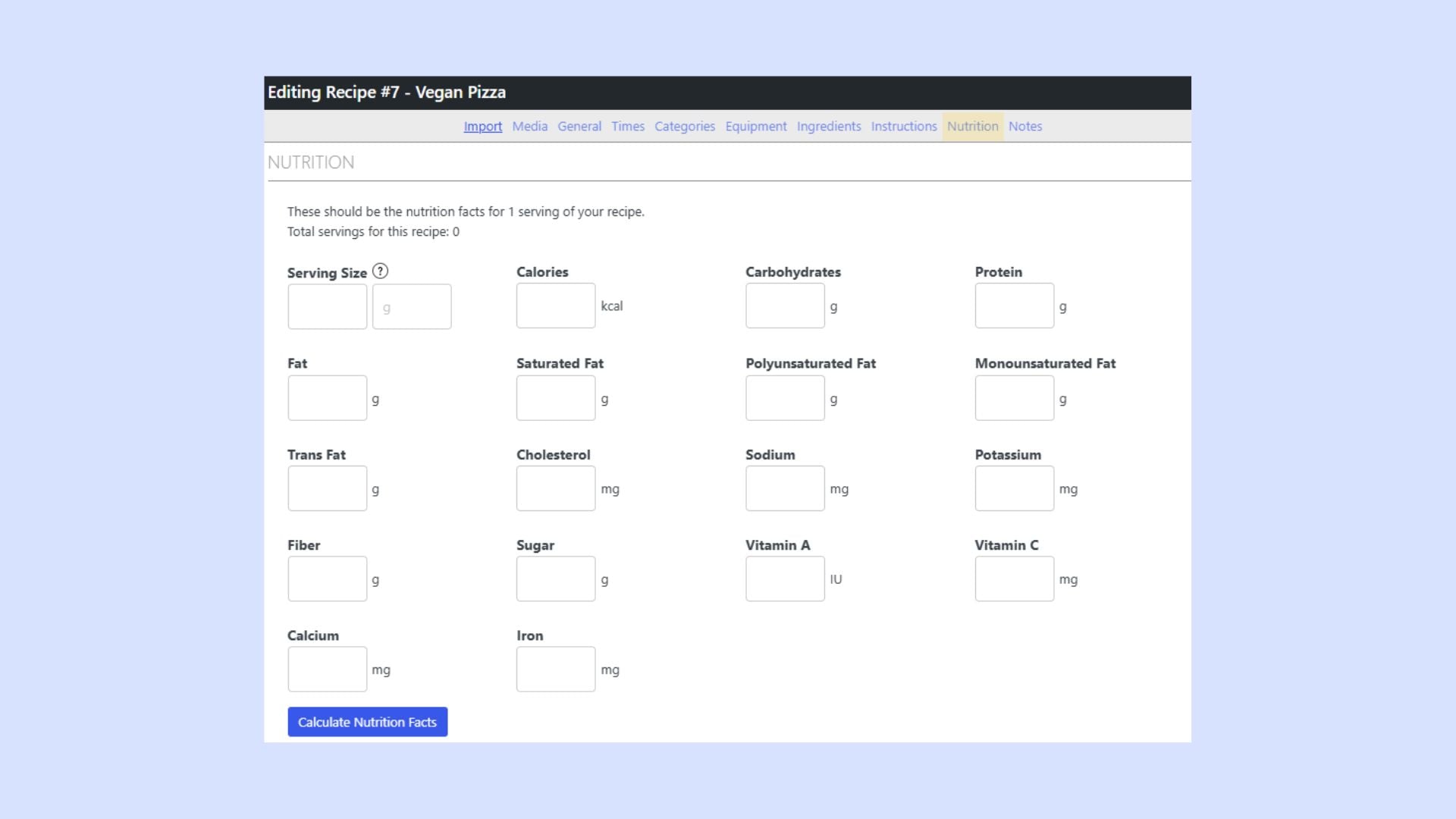
- Open your recipe and use Calculate Nutrition Facts in the Nutrition section.
- Enter ingredients with precise amounts, ideally in grams or ounces, because weight-based entries match far more cleanly than ‘1 can’ or ‘1 piece’.
- Review each ingredient match and swap anything that’s off before accepting the totals.
- Set the correct number of servings so the per-serving numbers make sense.
- Save your choices. WP Recipe Maker remembers your ingredient matches, so future recipes get faster as your ingredient library grows.
For readers, this results in a clear, familiar nutrition label displayed directly on the recipe page. Calories and macros are easy to scan at a glance, with optional details like fiber, sugar, sodium, and micronutrients available without cluttering the layout. Everything lives alongside the recipe itself, so readers don’t need to jump to another tool to understand the numbers.
When you need professional nutrition calculators
There are also professional nutrition calculators designed for medical, scientific, or regulatory use. These are built for situations like therapeutic diets, clinical settings, or regulated food labeling, where accuracy, documentation, and audit trails matter.
For most home cooks and food bloggers, you don’t need to worry about these tools. Everyday recipe calculators are designed for estimates and publishing, and they’re a much better fit for normal recipe use. Professional tools exist, but they’re only necessary when nutrition data carries medical or legal responsibility.
Pick your calculator and start verifying
The most accurate nutrition calculator shows you each ingredient match and lets you fix it. For a single recipe, start with WP Recipe Maker’s free recipe nutrition calculator.
At a basic level, nutrition calculators all do the same thing. They match your ingredients to database entries and add the numbers together. What separates a good setup from a frustrating one is how easy it is to review those matches and correct anything that doesn’t look right.
Having a clear system saves time, cuts down on guesswork, and keeps your nutrition labels consistent as you publish more recipes. You know where the numbers come from, and you can trust them because you’ve checked them yourself.
For WordPress food bloggers, WP Recipe Maker Pro fits naturally into that kind of workflow. Ingredient matching, verification, and saving your choices all happen inside the recipe editor, so accuracy improves over time instead of starting from scratch with every new recipe.
Pick your tool, weigh ingredients where you can, include cooking fats, and treat ingredient matches like the final step before publishing. When those are right, the numbers usually fall into place. For the full method, follow our guide on how to calculate nutrition facts for a recipe.
Ready to add accurate nutrition labels to your recipes? Try WP Recipe Maker Pro and start calculating (and verifying!) directly in WordPress.