

Importing Tasty Recipes into WP Recipe Maker takes a site backup, one bulk import, a per-recipe ingredient review, then a schema check. You want the change to go cleanly, without losing any of the work you’ve poured into your blog. Good news: the move is doable, but first you need a full backup of your site. That backup is your safety net: the import converts each recipe to WP Recipe Maker’s format, and a saved copy means you can roll back if anything looks off.
Here’s the whole process in eight steps, from your first backup to the final check.
- Back up your WordPress site and database so you have a way to undo the change.
- Map your Diet and Method tags to WP Recipe Maker’s built-in taxonomy or a custom one.
- Import one test recipe, check it, then bring the rest over in one bulk run from the Import Recipes screen.
- Review each recipe, with an extra look at ingredient lines that parsed differently.
- Reconnect any recipes that lost their parent post using the Find Parents tool.
- Recover your star ratings with the Find Ratings tool.
- Confirm your recipe schema with Google’s Rich Results Test.
- Deactivate Tasty Recipes once every check passes.
None of this is complicated, and you can take it one step at a time. Let’s start with the backup, since that’s what keeps the whole process calm from here on.
Back up your site before you switch
A full backup is a saved copy of your WordPress files and database that you can restore if the import goes wrong. Installing WP Recipe Maker next to Tasty Recipes doesn’t touch your existing recipes. The change happens when you import, because each recipe is converted to WP Recipe Maker’s format, so it may no longer show up in Tasty afterward. A recent backup means you can always get back to exactly where you started, so make one before you open the importer.
You’ll want two things saved.
- Your database, which holds every recipe, post, and comment.
- Your site files that have your theme, plugins, and images.
Most food bloggers grab both in a couple of clicks with a free plugin like UpdraftPlus, or with the one-click backup in their hosting dashboard.
Before the full import, do two things.
- Import a single recipe first as a test, instead of the whole library at once.
- Check that test recipe’s content and formatting before you bring over the rest.
That test recipe import gives you an idea of how the process works on your setup. You can check if there are any issues on one card rather than across hundreds, and then proceed to import all the recipes in bulk. With a backup saved and your test recipe looking right, you’re ready to sort out your tags.
Map your Diet and Method tags before importing
A taxonomy is the tag system a WordPress plugin uses to sort recipes, like Diet or Method. Tasty Recipes uses these two to group your posts, and your dietary tags do carry over when you switch. The part worth planning is where they land.
When the import runs, WP Recipe Maker shows a mapping screen before a single recipe moves. That screen is where you point Tasty’s Diet and Method tags at their new home. You get two choices, and each one pays off differently.
- The built-in diet taxonomy uses Schema.org’s suitableForDiet values, such as VeganDiet and GlutenFreeDiet. These are the diet types Google reads for recipe rich results. Switch this taxonomy on first under WP Recipe Maker > Settings > Recipe Metadata, so it shows up as a mapping option.
- A custom taxonomy keeps your exact labels, like ‘Keto’, ‘Whole30’, or ‘Paleo’, the words your readers type into search. The tradeoff is that custom labels don’t fill the suitableForDiet field, so Google won’t count them as a recognized diet. Creating custom recipe taxonomies needs WP Recipe Maker Premium, since the free plugin comes with Course and Cuisine only.
So the built-in route feeds Google the diet data it understands, while a custom taxonomy protects the wording on your page and your site’s own search. You don’t have to pick one rule for your whole library. You can decide tag by tag which payoff earns the spot.
Standard taxonomy or custom: what you keep and what you lose
Standard mapping keeps schema output for the diets Google recognizes, while custom mapping keeps every label your readers search for. Go through your tags one at a time and ask which matters more for that tag: the recipe rich results in Google or the exact wording on the page.
Run the import from your dashboard
WP Recipe Maker’s import tool is a built-in feature that pulls your Tasty recipes into the plugin from one screen. Keep both plugins active for this part, since the tool needs Tasty in place to find your recipes.
- Install and activate WP Recipe Maker alongside Tasty Recipes, then open WP Recipe Maker > Import Recipes.
- Let the tool auto-detect your Tasty recipes, then tick the ones you want to bring over.
- Start the import and watch each recipe get marked as it finishes.
If you’d prefer to read along while you work, the WPRM documentation has a detailed step-by-step walkthrough of the import process.
Review your imported ingredients
Ingredient review is the hands-on part of the switch, where you check how each ingredient line came across. This is the one step that needs you rather than the plugin, and it’s the reason a few quantities can look off right after an import.
Here’s why that happens. WP Recipe Maker keeps every ingredient in four separate fields, one each for quantity, unit, name, and notes. Tasty Recipes keeps the whole line as a single piece of text. So during the import, WPRM reads each Tasty line and decides where every part belongs. Simple lines land perfectly. Busier ones need a quick look.
| Original Tasty line | How WP Recipe Maker splits it | What to check |
| 1 cup flour | Quantity 1, unit cup, name flour | Nothing, it’s already clean. |
| 1-2 tablespoons olive oil | Quantity 1-2, unit tablespoons, name olive oil | The range won’t scale with adjustable servings, so confirm it. |
| Salt to taste | Name salt, with “to taste” in notes | Glance at it to be sure it reads right. |
Most of your library will be the tidy kind that needs nothing. The lines worth your attention are ranges, fractions typed as text, and anything with extra wording in brackets, since those are where a number can slip into the wrong field.
You don’t have to touch every recipe by hand. Plan for roughly two to four hours per 100 recipes, and spend that time only on the lines that genuinely look off. Skim each card, fix the odd ones, and keep moving.
Reconnect recipes that lost their parent post
An orphaned recipe is one that has lost its link to the post it used to sit inside. Every WP Recipe Maker recipe is stored as its own item and shown on a page through a block or shortcode.That link is how WP Recipe Maker knows which post each recipe belongs to.
Orphaning happens when the import swaps out Tasty’s old shortcode and the connection to the parent post breaks along the way. A recipe without a parent still shows up on the page, so there’s no need to worry about cards vanishing. What can break is anything that relies on that link, such as comment ratings connecting to the right recipe.
The fix is quick and built right into the plugin.
- Run Find Parents from WP Recipe Maker > Tools to relink orphaned recipes to their correct posts.
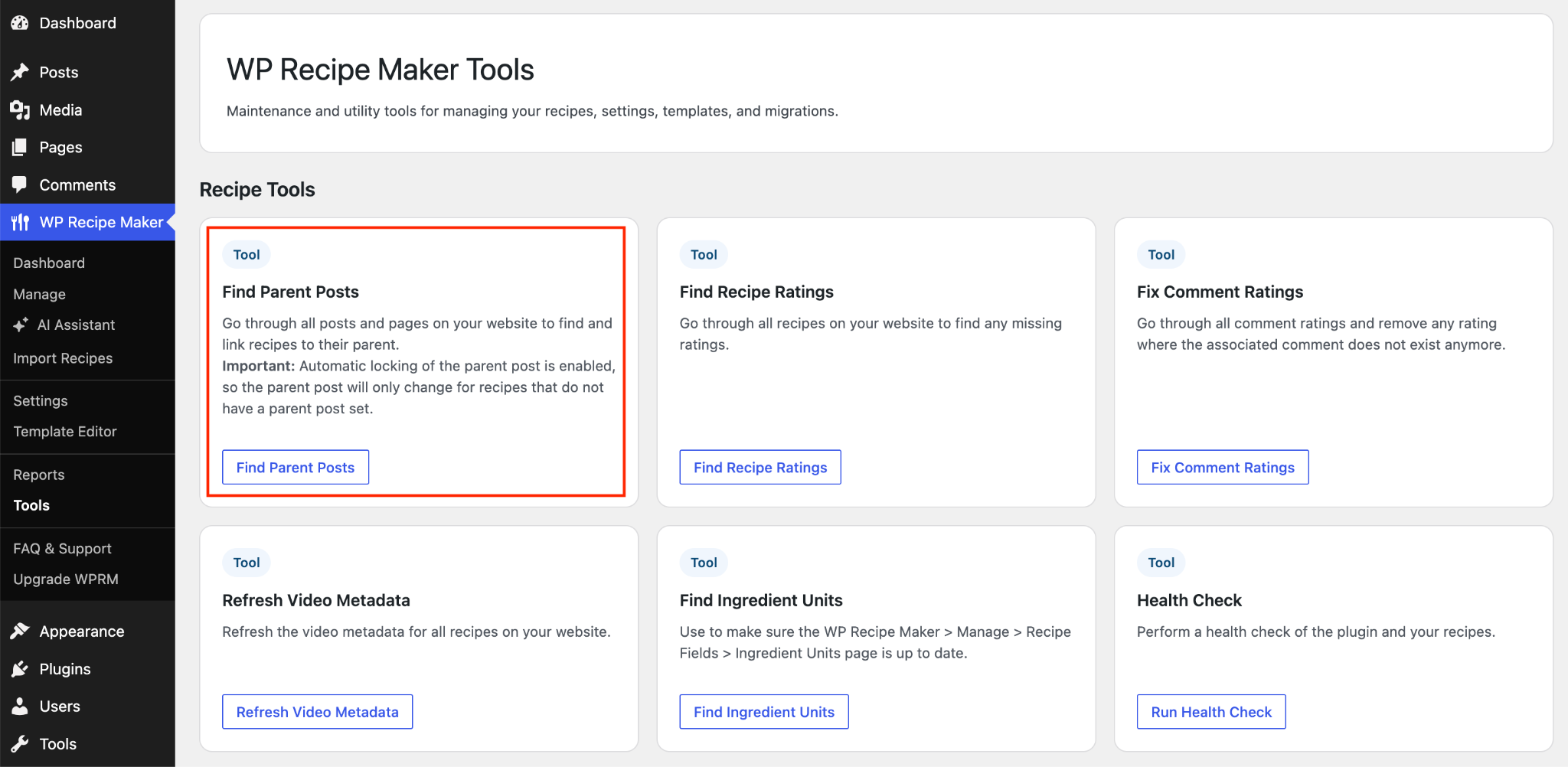
- Open a handful of posts afterward and confirm each recipe card is displaying where it should.
That quick spot-check confirms each recipe is linked to the right post. With that sorted, you’re ready to bring back your star ratings.
Recover your star ratings and nutrition data
Missing star ratings after an import are almost always hidden rather than lost. Your scores usually still sit in the database. They just need a couple of settings switched on before they show up on the card again.
You’ll do two things to bring them back.
- Turn on both star rating features under WP Recipe Maker > Settings > Star Ratings. Comment Ratings work on every plan, including the free plugin, while the User Ratings modal, which lets readers click the stars right on the card, needs Premium.
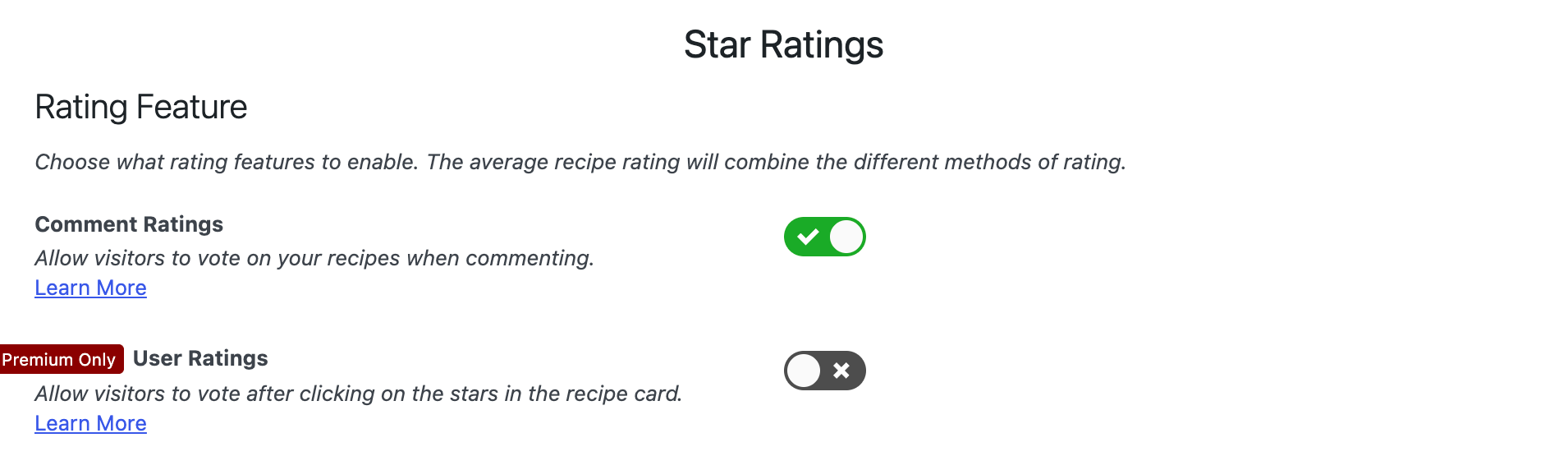
- Run the Find Ratings tool from WP Recipe Maker > Tools to pull those scores back onto your recipes.
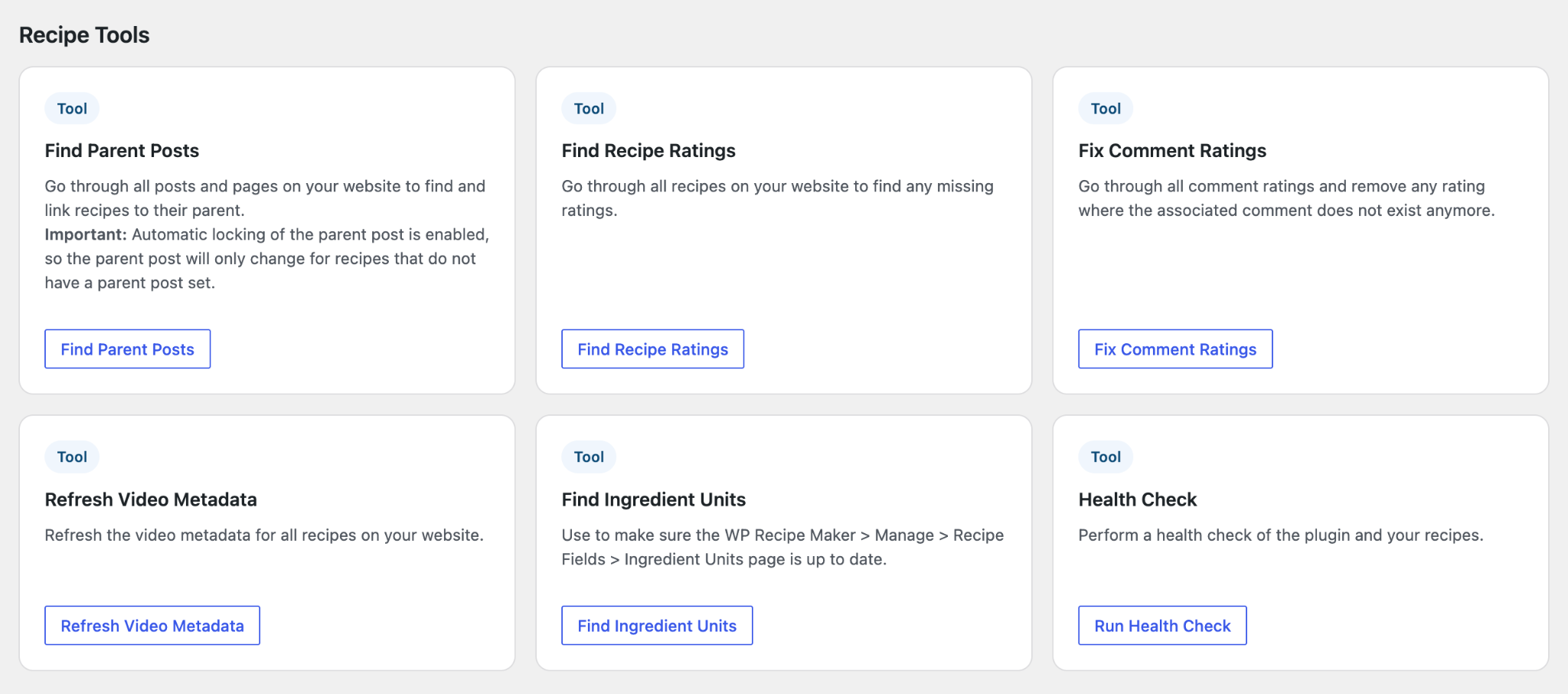
Whether the stars appear depends on both the settings and the import, so open a few recipes afterward and check that the scores and vote counts read right.
Nutrition data is more straightforward. Anything that carried over during the import shows on the recipe card straight away, and you can look it over or edit those numbers one recipe at a time.
Confirm your recipe schema still works
Recipe schema is the structured data that tells Google what a recipe contains, like its ingredients, cook time, and rating. WP Recipe Maker writes this as JSON-LD for every card on its own, so switching plugins doesn’t strip your SEO by default. What’s left is to prove it came through clean.
Start with one live recipe. Copy its URL and run it through Google’s Rich Results Test. That tool reads your page the way Google does and shows whether the recipe qualifies for rich results, the search listings that display your star rating, cook time, and photo. A clean result means the schema is doing its job. Try a few more recipes from different posts, so you know the whole library holds up.
Then check your images. Google requires an image for recipe rich results, so open each card and confirm it has a clear recipe image that appears where it should. If one is missing, regenerating your thumbnails usually brings it back, since WP Recipe Maker uses specific image sizes that older posts may not have created yet.
If the test flags a warning, it’s usually one of two common issues, and both are quick to sort.
Watch for missing fields and duplicate schema
Two faults tend to show up after a switch, and each one quietly blocks rich results.
- Missing required fields. If a required value like the recipe name or image didn’t carry over, the recipe won’t qualify until you add it back. Recommended fields like the ingredient list are worth restoring too.
- Duplicate schema. If Tasty stays active next to WP Recipe Maker, some pages can output two recipe blocks, and that confuses validation. Turning off the old plugin once your migration checks out clears it.
Start your move to WP Recipe Maker
That’s the full migration done. Your recipes are imported, your ingredient lines are tidy, every card is linked to its post, your ratings are showing, and your schema checks out. Everything you add from here builds on a clean, verified migration.
WP Recipe Maker’s Template Editor is free and lets you restyle every part of your recipe card to fit your brand, with no code needed. With Premium, you also get adjustable servings that recalculate ingredients for your readers, plus ingredient and equipment affiliate links that let each recipe earn a little on the side.
You handled the careful part. Now put these tools to work.
Take the next step and open WP Recipe Maker Premium, then start turning on the features that brought you here.
FAQ
Are there other plugins that can import Tasty Recipes?
Yes. WP Delicious also has a Tasty Recipes importer. It’s a newer, lighter plugin built around the block editor.
WP Recipe Maker is the stronger pick for a professional food blog with room to grow. It’s a mature plugin with a wide feature set, and it ships updates every few weeks, so your recipe cards keep up with Google’s shifting SEO rules. For a library you plan to build on for years, that steady upkeep makes it a safe long-term destination.
Is WP Recipe Maker free, or do I need to pay to import from Tasty Recipes?
The import runs on the free plugin, so you can move your Tasty recipes over without paying anything. The cost comes in with the features most switchers are really after. User ratings, adjustable servings, and affiliate links on ingredients and equipment all sit in Premium. That matters because Tasty’s paid plans already include adjustable servings and metric conversion. To keep those on your cards, choose Premium for adjustable servings, or Pro if unit conversion is on your list.
How does the cost of Tasty Recipes compare to WP Recipe Maker?
For one site, Tasty Recipes runs $49 for the first year and then renews at $99 a year. WP Recipe Maker Premium is $49 a year and stays there at renewal. Year one lands close either way. From the second year on, the difference is clear, with Premium coming in at around half of Tasty’s renewal price. For the full two-year picture, our WP Recipe Maker vs Tasty Recipes comparison breaks down every add-on.