
Hitting “Print” on a recipe page doesn’t always get you the prettiest results. At best, you’ll get a page break right in the middle of your instructions and the sidebar crammed next to your ingredient list. At worst, you get three pages of ads and a recipe that starts on page four.
You probably wouldn’t save that or share it with your friends, and neither would your readers.
Unfortunately, WordPress’s default Export tool won’t help you here. It creates an XML file for moving your site to a new host, not a nice recipe PDF.
Luckily, there are two viable paths forward depending on what you need:
- If you run a recipe site, WP Recipe Maker’s print feature is built exactly for this.
- If you need to compile dozens of recipes into a cookbook, there are bulk export tools for that.
⚠️ If you’re really in a bind, we’ll cover browser printing, but only as a fallback, not a recommendation. Automated email delivery and lead magnet workflows are a separate topic entirely.
Let’s go over your options in PDF creation for your readers.
Choose your approach
The right tool depends entirely on your goal, so here’s a quick routing guide:
- If you run a recipe blog and want visitors to save individual recipes without ads or sidebars cluttering the output, skip to the WP Recipe Maker print feature section.
- If you need to compile tens, hundreds, etc., of recipes into a single downloadable cookbook PDF, skip to the section on dedicated bulk PDF export tools.
- If you’re not using a recipe plugin at all, skip to the section on general PDF solutions.
- If you just need the bare bones, something working in the next five minutes with no setup, skip to the section on the browser print feature as a fallback.
If you run a recipe site: Use WP Recipe Maker’s print feature
WP Recipe Maker approaches PDF output differently from other recipe plugins. Here’s how the whole system fits together.
How the Print Recipes button works
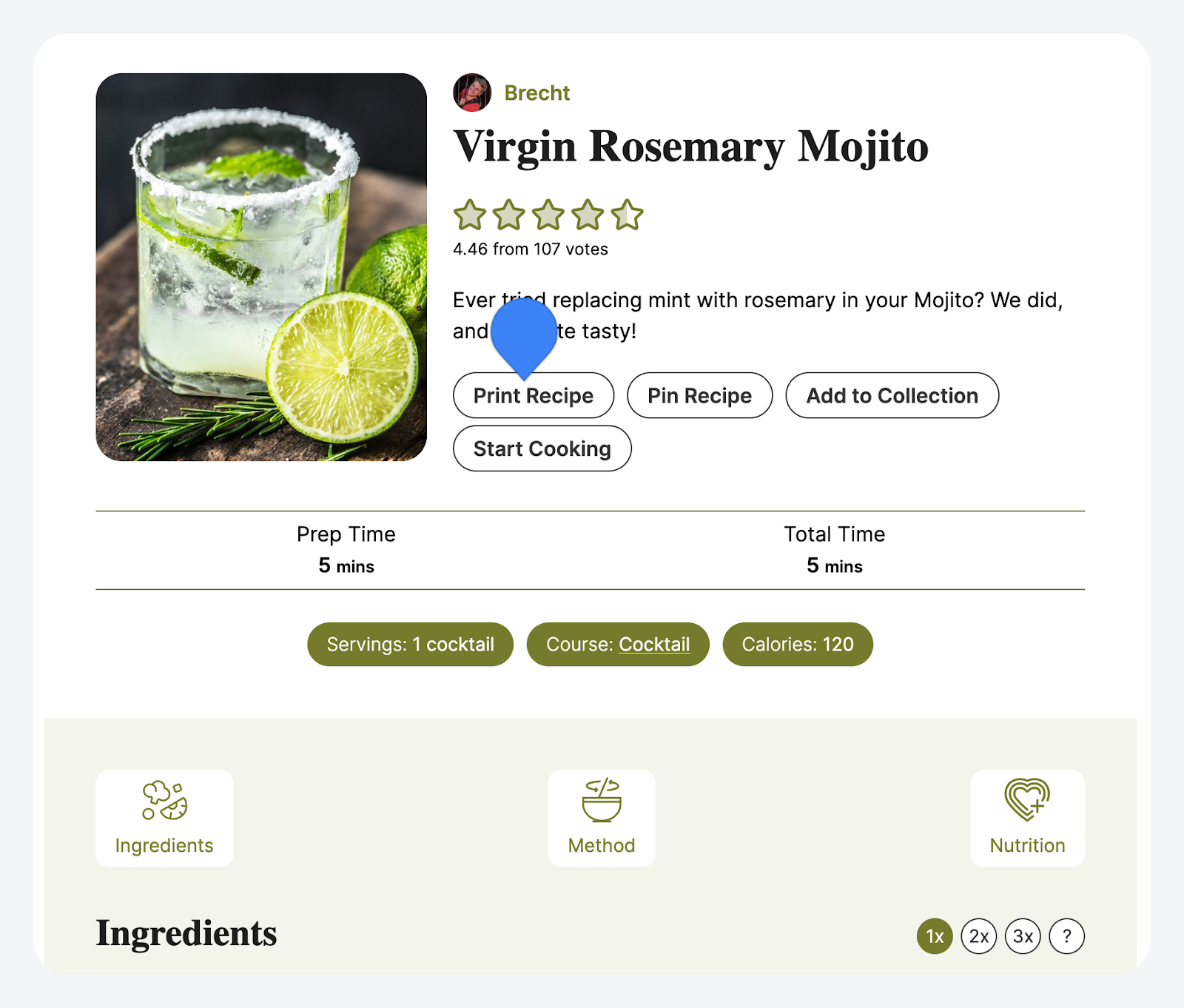
WP Recipe Maker handles this perfectly for any food blogger. It generates a dedicated print page rather than just sending your full site layout to the printer.
When a visitor clicks the Print button on a recipe card, they land on a recipe-only page.
From there, they can toggle images on or off, adjust serving sizes, and then use their browser’s Save as PDF option to download the result.
Ingredient and equipment links stay clickable in the saved PDF. If you’re using affiliate links on your ingredients or tools, those carry through.
Visitors can also hit the “Email Link” button to share the print page directly rather than downloading it.
Serving size changes reflect in the printed version too, so if someone doubles the recipe before printing, the quantities update accordingly.
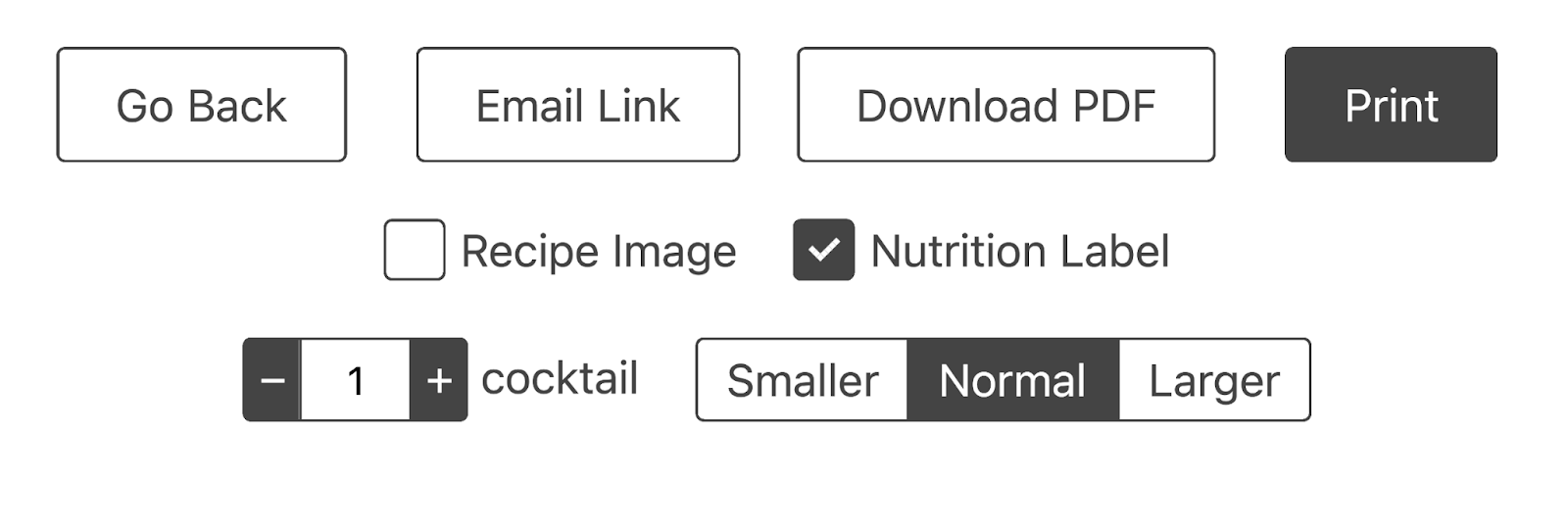
The basic Print Recipes feature is available across all WPRM bundles. The Download as PDF button, covered below, requires the Premium bundle or above.
Customizing print templates for professional output
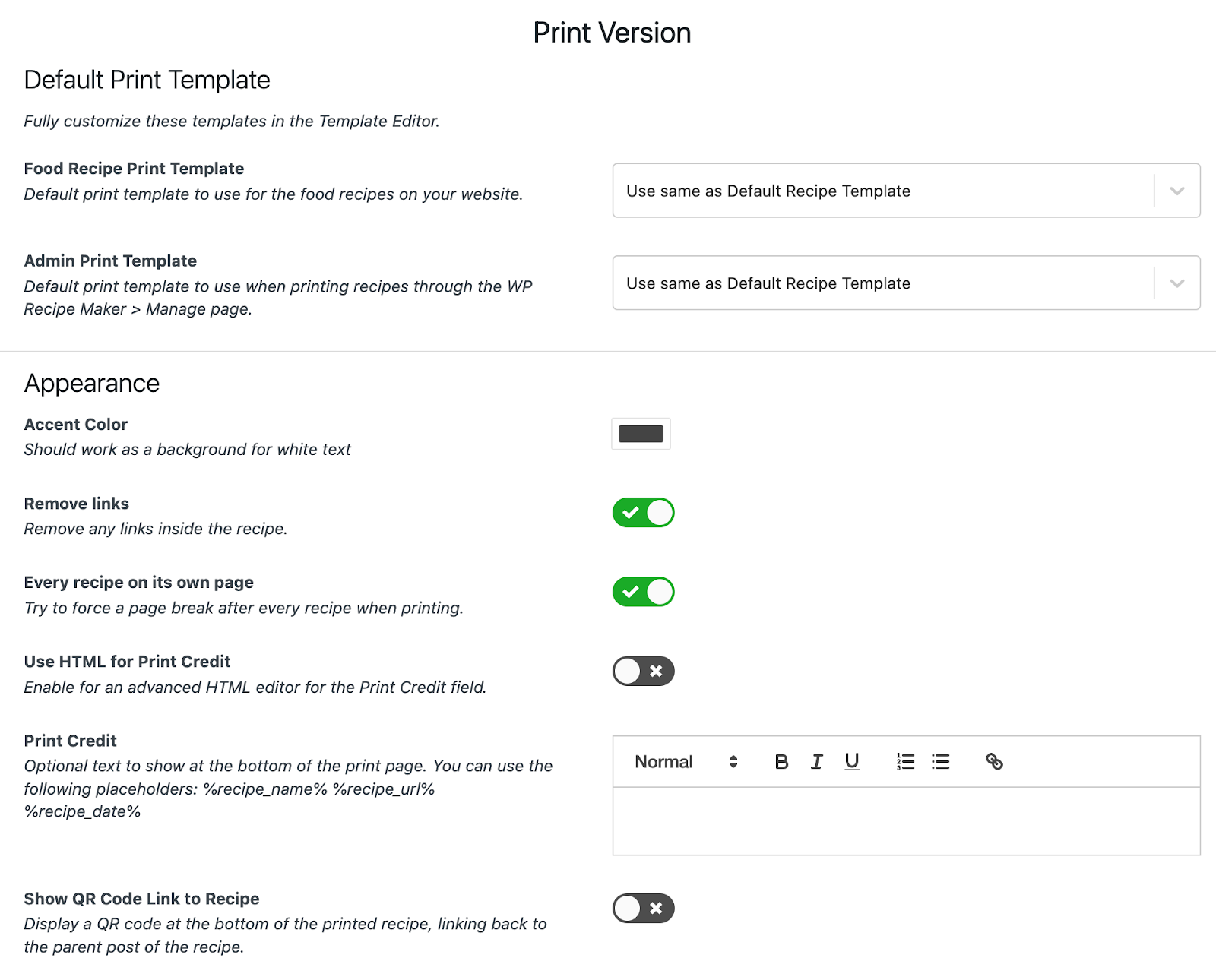
The default print template works well out of the box, but if you want the output to match your brand, head to WP Recipe Maker > Settings > Print Version.
Your actual design control lives in the template editor, accessible via WP Recipe Maker > Template Editor.
💡 You can’t modify the original default templates directly. Clone them first, then customize your copy. This protects the original in case you want to revert.
From the Template Editor, you can adjust fonts, colors, spacing, and which elements appear at all. You can also set whether images show by default, add credit text, and configure footer content.
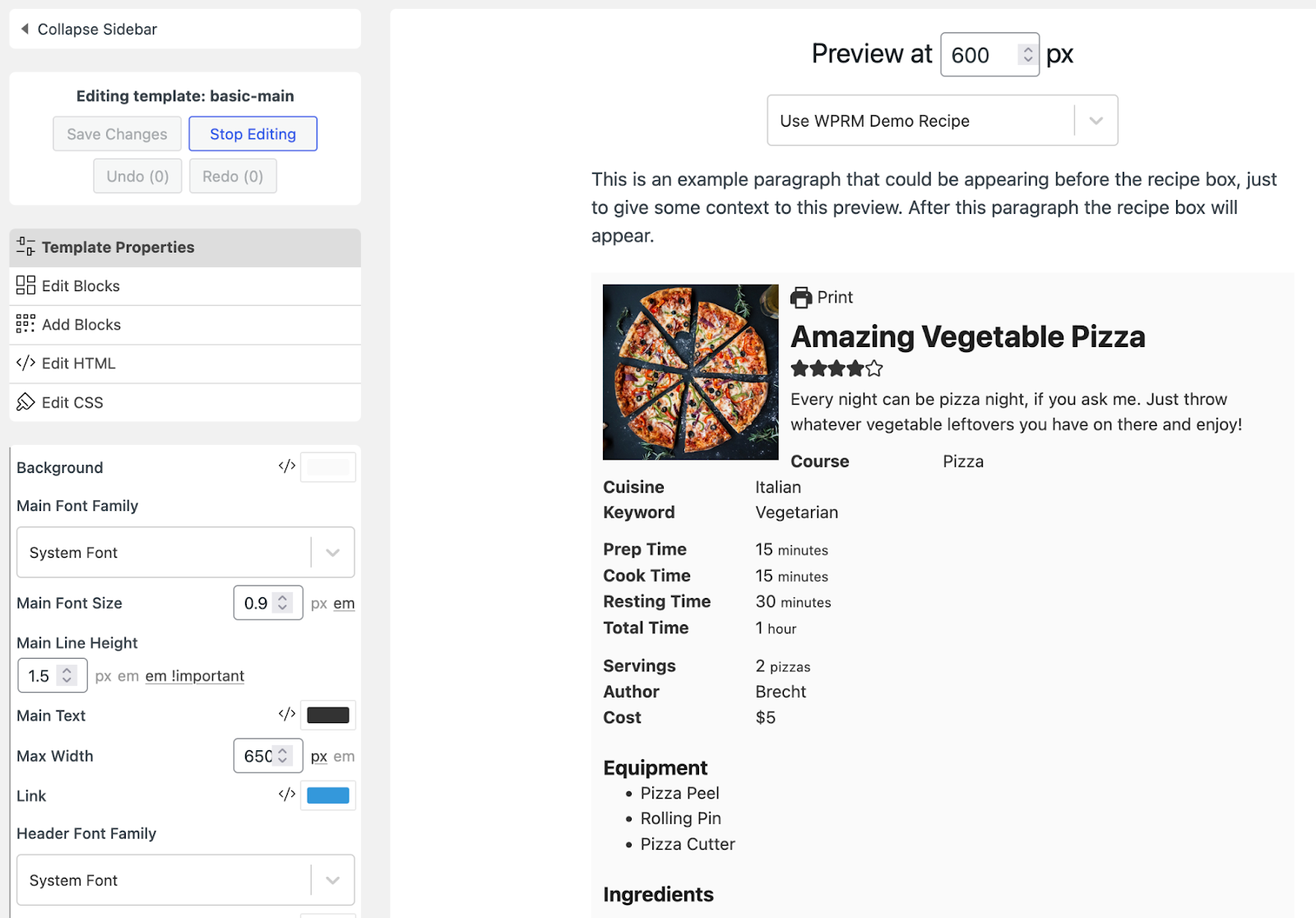
Footer content appears in the print preview but doesn’t actually print, which makes it a useful spot for a small ad or affiliate placement that monetizes the page without showing up in your readers’ saved PDFs.
Print settings that impact PDF quality
The settings in WP Recipe Maker > Settings > Print Version directly affect what ends up in your readers’ PDFs, so it’s worth knowing what they do.
The image toggle controls whether images are on or off by default when a visitor opens the print page. They can still change it themselves, but you set the starting state.
Print templates control image dimensions too, and this is worth paying attention to. Web images are sized for screens, not print layouts. Without proper dimension controls in place, images can blow up and ruin your PDF formatting.
Download as PDF button
Introduced in WP Recipe Maker 10.4.0, when added as a standalone button to the recipe card, it skips the browser print dialog entirely..
You can add it as a standalone button on recipe cards, or integrate it into the existing print interface alongside the standard Print button.
Either way, the PDF is generated on demand and always reflects the current version of the recipe. You don’t need manual regeneration when you update an ingredient or fix a typo.
This is particularly useful for mobile visitors. The browser print dialog on mobile is awkward at best, and many users abandon it. A direct download button removes that friction entirely, and the saved PDF is easy to store, organize, and share offline.
If you need bulk PDF export: Use dedicated tools
Single-recipe PDFs are one thing. If you’re trying to compile an entire season’s worth of recipes into one downloadable cookbook, or archive your full back catalog, you need a different class of tool entirely.
Here are some options, plus one popular plugin that gets mistaken for a PDF exporter but isn’t.
Print My Blog for recipe collections
Print My Blog is the most practical route to bulk PDF export for recipe sites.
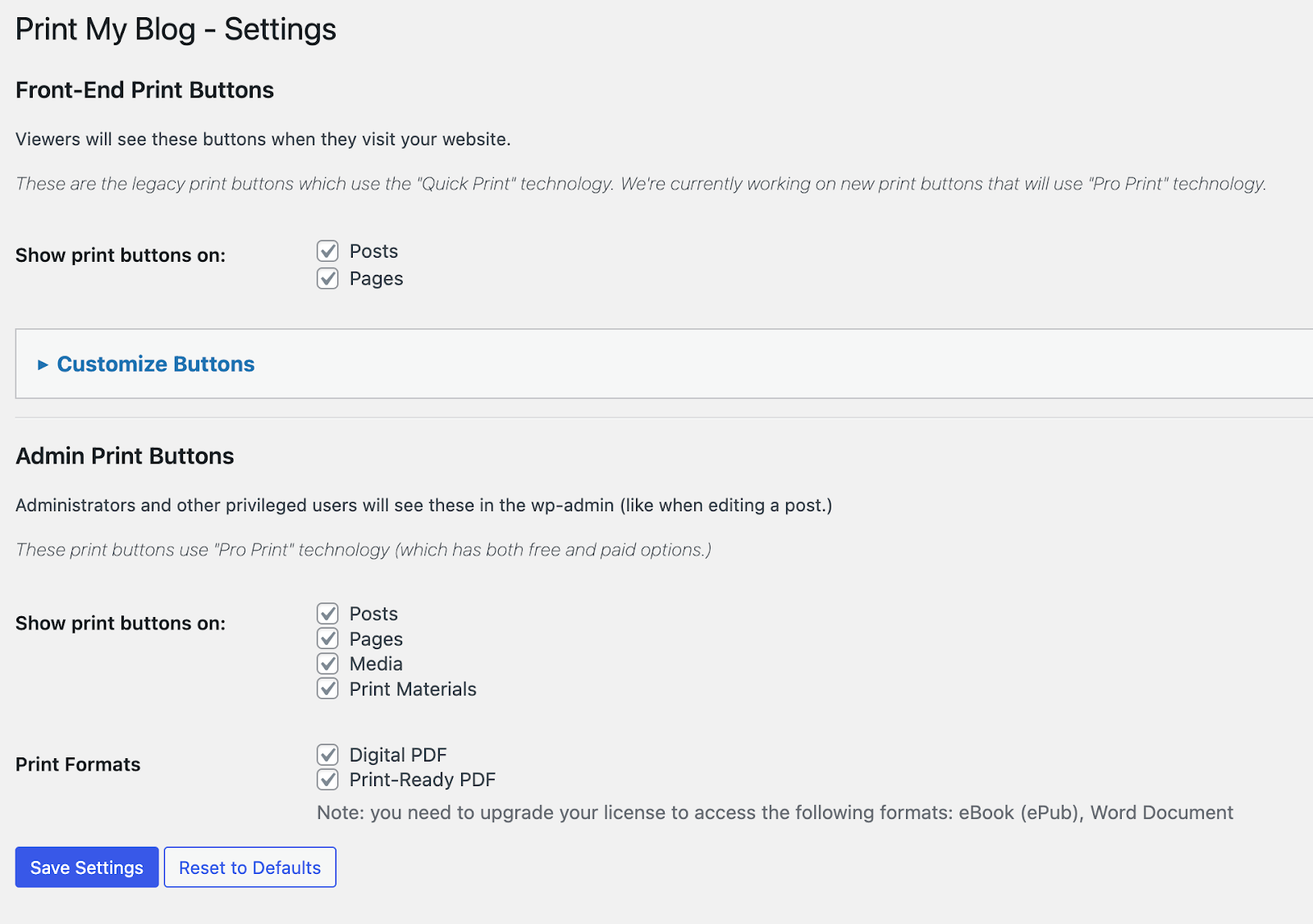
The core use case is compiling large numbers of posts into a single document. Think a holiday cookbook pulling from your “Christmas Recipes” category, or a full archive of everything you published in a given year.
It works in two ways:
- Visitors can use download buttons you add to your site with the [pmb_print_buttons] shortcode.
- You can run a bulk export yourself from the admin side.
Either way, you can filter by category or tag before exporting, so you’re not stuck pulling your entire site into one PDF. A “Desserts” collection or a “30-Minute Meals” archive is straightforward to set up.
The plugin maintains post structure through the export, so images, headings, and ingredient lists come through intact.
The formatting is less refined than what you’d get from a recipe-specific print template, and it’s not professional print-ready if you’re thinking about commercial publishing.
Best for downloadable recipe collections, site archiving, and reader-facing PDF cookbooks.
PDF & Print by BestWebSoft
PDF & Print by BestWebSoft takes a simpler approach: it adds PDF and print buttons to your posts so visitors can download whatever page they’re on.
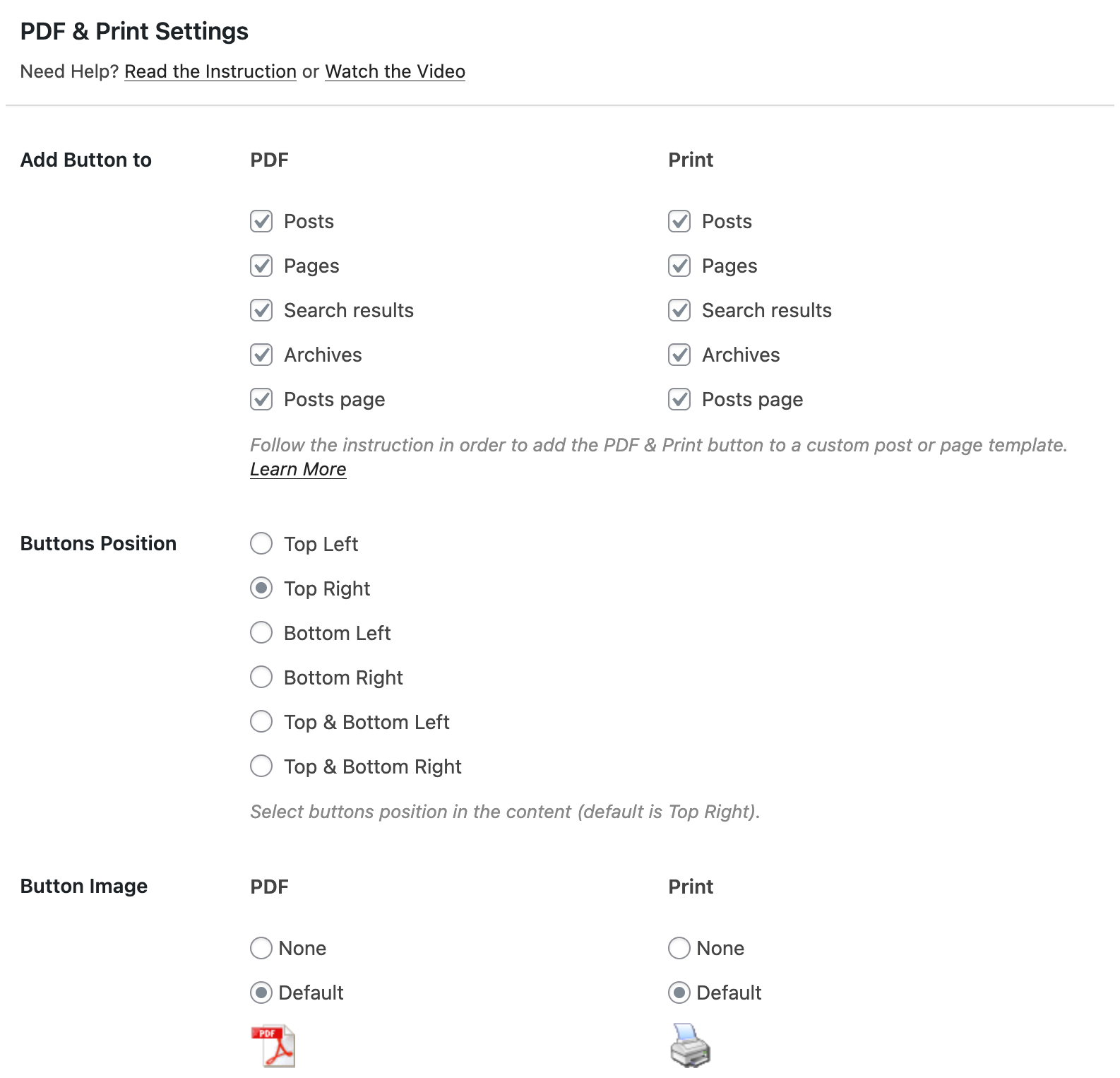
Setup is minimal, button placement is customizable, and you get basic header and footer options with minimal configuration.
The tradeoff is that it’s a generic post-to-PDF converter. It has no awareness of recipe structure, so the output reflects your post layout rather than an optimized recipe format. For a dedicated recipe site, that’s a real limitation.
Best for mixed content sites where recipes are one content type among several and you want a single download solution across the board.
Why WP All Export won’t work
WP All Export comes up regularly in conversations about recipe exporting, but it doesn’t export PDFs. It only does CSV (spreadsheet), XML (feed), and Excel formats.
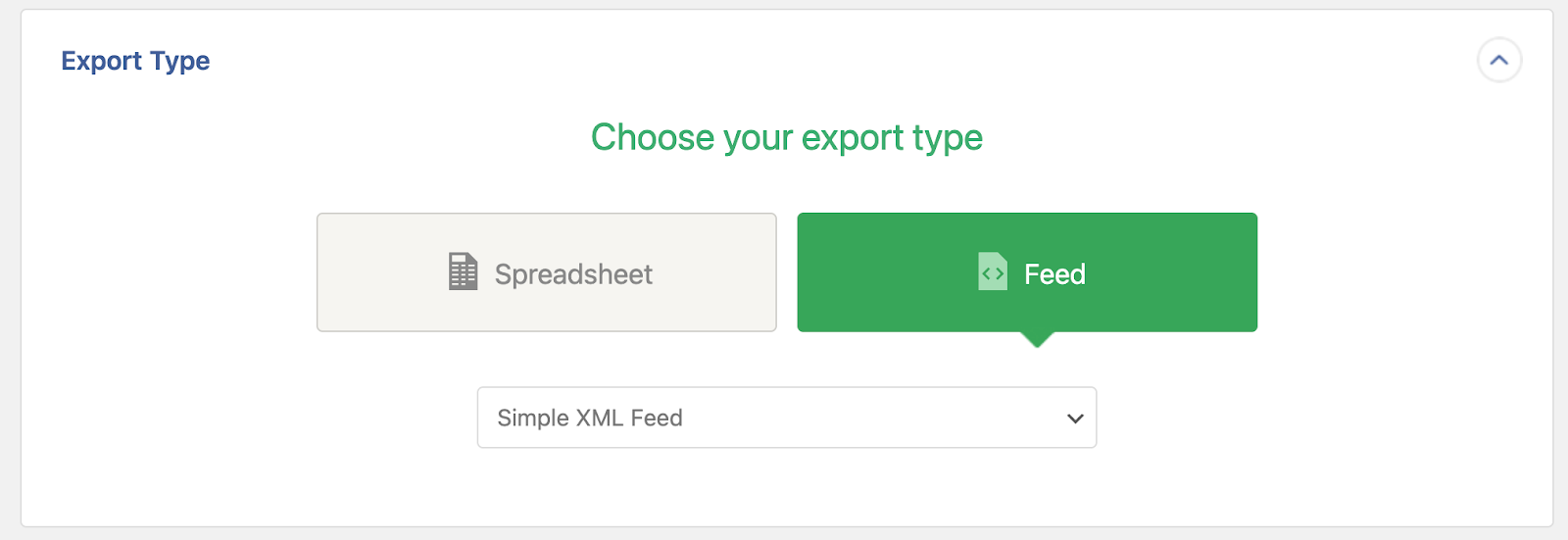
It’s a data export tool. The output is structured rows of recipe metadata: ingredients, cook times, categories, and other fields, formatted for spreadsheets or databases.
That’s genuinely useful if you’re migrating platforms, analyzing your recipe library, or feeding data into another system. It’s not useful if you want a formatted document that your readers can download.
For PDFs, you need Print My Blog or a similar dedicated converter. WP All Export solves an entirely different problem.
If you’re not using a recipe plugin: Use general solutions
If you’re publishing recipes without a dedicated recipe plugin, your PDF options are more limited, but they’re not zero. The honest framing here is that you’re trading formatting control for simplicity.
Save as PDF by PDFCrowd is the most straightforward option in this category. It adds a download button to your posts with minimal setup, and its generic templates will convert any post or page to PDF without you needing to configure much.
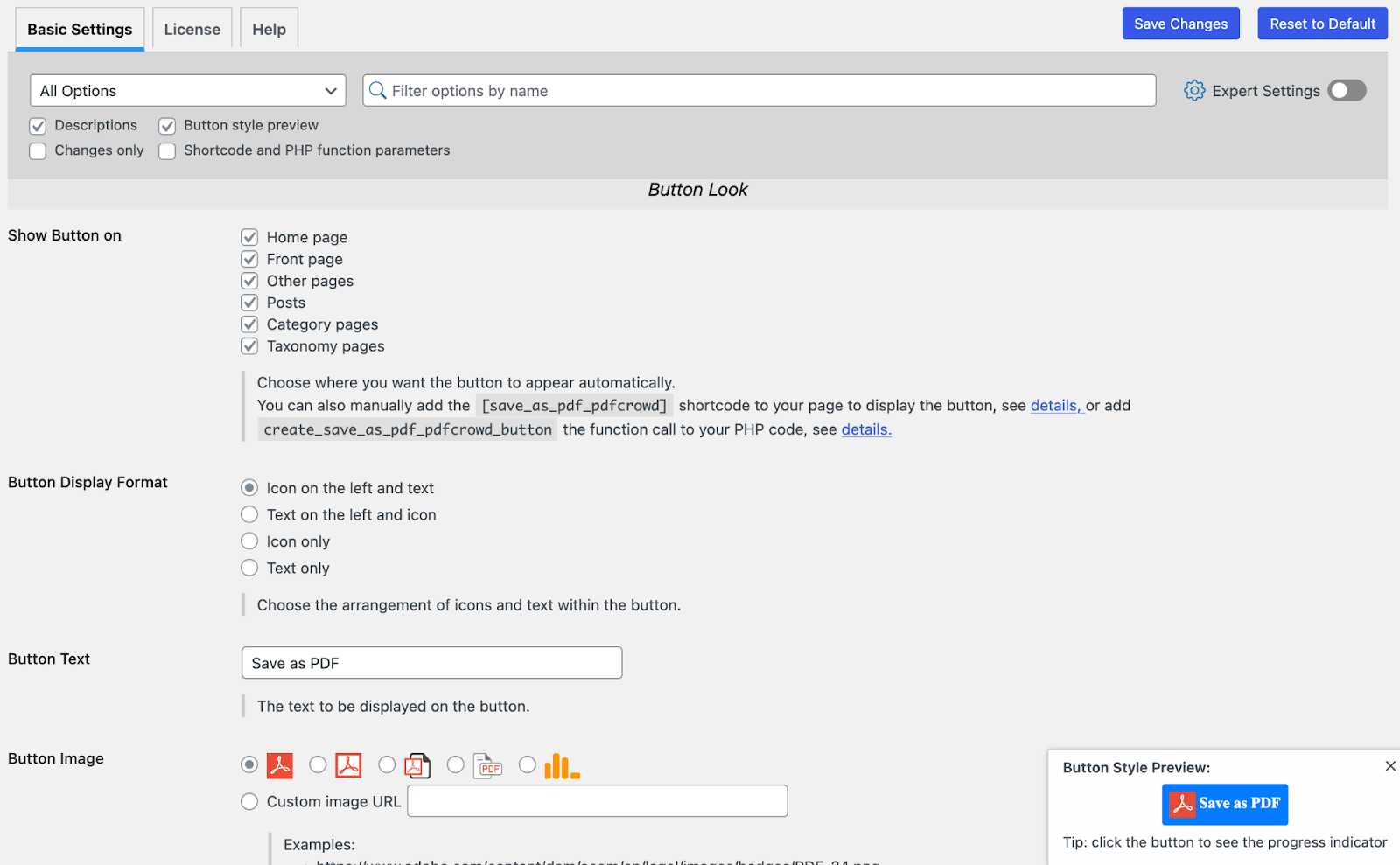
What you get out depends heavily on how your post is structured and how your theme handles print styles. For a non-recipe-focused site where recipes are occasional content, that’s probably fine. For a site built around recipes, the lack of any recipe-aware formatting will show.
The realistic expectation with any generic converter is that your PDF will look like your post, ads and all, unless your theme has solid print CSS already in place. You’re not getting the dedicated print view that a recipe plugin provides.
E2Pdf and Formidable Forms are worth knowing about if you’re planning to build automated PDF delivery or email-based lead magnets down the line. Both handle server-side PDF generation and can attach files to email notifications automatically.
That’s a separate workflow from what this guide covers, but if your eventual goal is “visitor submits their email and receives a recipe PDF,” those tools handle it.
💡 For our money, though, a dedicated plugin is the better long-term investment for a recipe-focused site.
Browser print as a last resort
Browser print exists, it works, and sometimes it’s all you have. Here’s the process:
- Right-click the recipe page.
- Hit Print (or Cmd+P).
- Set the Destination to “Save as PDF”.
- Save.
Four steps, can’t go wrong. Except for the output, which is your whole page dumped into a PDF as is. Sidebars, ads, navigation, comments: everything your visitor definitely doesn’t want.
When the output is the whole point, that’s kind of an issue.
What’s more, they’ll have to contend with awkward page breaks, web-sized images that don’t behave predictably in print layouts, and an inconsistent result between browsers.
Whether it looks acceptable also depends on your theme’s print CSS, which ranges from solid to nonexistent depending on what you’re running.
For personal reference or a quick save when nothing else is available, it gets the job done. As a solution you’d actually point your readers toward, though, it’s a tough sell.
💡 If you can, use any of the other tools we’ve discussed above. They exist because “eclectic” is a great word for art galleries, not for recipe PDFs.
Start downloading recipes as PDFs effectively today
Right, let’s bring this home:
- WP Recipe Maker is the go-to for recipe sites. Its Print Recipes feature and Template Editor give you more control over PDF output than anything else out there.
- Print My Blog is your best bet when you need to pull large collections into a single downloadable cookbook.
- Generic plugins and browser print are there when you just need something simple and don’t care too much about the output.
The difference a dedicated plugin makes shows up in the details. Affiliate links that survive into the PDF, images that don’t blow up the layout, serving sizes that adjust before printing.
That’s the kind of thing your readers notice, even if they can’t articulate why one PDF feels polished and another doesn’t.
Get started with WP Recipe Maker and give your readers recipe PDFs they’ll be sending to their friends before they’ve even left the kitchen.