
Creating your own recipe cards can be as simple or as advanced as you want it to be. Some people are looking for a quick way to design printable cards for a family binder or a thoughtful gift, while others want something more dynamic – a recipe card that lives on their website, shows up in search results, and actually helps grow their food blog.
There are two main types of recipe cards. Printable cards are static designs you create in tools like Canva or Microsoft Word, then print or share as a PDF. Interactive recipe cards are built for websites, usually with WordPress plugins, and include features like structured data for SEO, adjustable servings, and built-in print buttons.
In this article, you’ll see how to create simple printable cards using Canva or Word, and how to build interactive recipe cards on WordPress that do a lot more than just look good. Whether you’re saving a family favorite or publishing recipes regularly, the goal is the same – a recipe card that actually works in a real kitchen.
What to include on a recipe card
Before you pick a tool or template, it’s worth getting clear on what actually goes into a good recipe card. No matter how you create it, the structure matters more than the design. A decent recipe card includes:
- Recipe title: Large, clear, and easy to scan at a glance.
- Category: Meal type, cuisine, or dietary tag (Dinner, Dessert, Gluten Free, etc).
- Ingredients list: Written in the order they’re used, not randomly grouped.
- Yield or servings: How much the recipe makes.
- Prep and cook time: Separate where possible so readers can plan.
- Step-by-step instructions: Numbered, with a time, temperature, and a visual cue in each step (for example: “cook until golden, about 4 minutes”).
This structure is widely recommended because it mirrors how people actually cook. You don’t want readers jumping around trying to figure out what comes next.
A couple of small details make a big difference. Stick to volume measurements like cups and tablespoons unless you’re targeting a specific audience. And keep your labels consistent across all your cards. Switching between “Dinner” and “Main Course” might seem minor, but it quickly gets confusing if you’re organizing multiple recipes.
These basics apply whether you’re using Canva, Word, or a WordPress plugin. Get this right first, and everything else becomes much easier to build on!
Recipe card sizes and which one to choose
Before you open Canva or download a template, decide how you’re going to store your recipe cards. The size you choose should match that system, not the other way around.
If you’re unsure, 4×6 inches is the safest default. It’s widely supported and gives you enough space for most recipes without feeling cramped.
Here’s how the standard sizes compare:
| Size | Fits | Best for… | Trade-off… |
| 3×5 in. | Vintage tin or cardboard recipe boxes. | Short, simple recipes. | Limited writing space. |
| 4×6 in. | Most modern boxes and binders. | The modern default for most users. | Too big for traditional tin boxes. |
| 5×7 in. | A5 mini binders with card protectors. | Longer recipes or adding a finished-dish photo. | Won’t fit standard sleeves or most boxes. |
Smaller cards are easy to store, but you’ll run out of space quickly once recipes get more detailed. Larger cards give you room to include everything comfortably, though they can be harder to store in standard boxes or sleeves.
Choosing the right size from the start makes the whole process easier. You won’t have to adjust your layout later or switch templates halfway through, and your cards will fit neatly into whatever storage system you’re using.
How to create recipe cards: tools compared
If you’re wondering what program to use to create recipe cards, it really comes down to how you plan to use them. Some tools focus on designing printable cards, while others create interactive recipe cards that live on your website.
For printable cards, Canva is usually the starting point. It has a huge library of recipe card templates (900+), and the drag-and-drop editor makes it easy to customize colors, fonts, and layouts. You can build a great-looking card on the free tier, but you’ll run into limits fairly quickly. Features like background removal, premium templates, and resizing designs are only available with Canva Pro.
If you want something similar with a slightly more polished feel, Adobe Express is another option. It leans more toward professional-looking templates and has one feature Canva doesn’t offer – you can have your cards printed and delivered to your door in regions like the US, UK, Canada and Australia. Like Canva, though, the free version comes with restrictions on premium assets.
For a simpler approach, Microsoft Word (using Vertex42 templates) is hard to beat. You download a template, open it in Word, and fill in your recipe. There’s no account required, and you can work completely offline after downloading. It’s not as flexible in terms of design, but it’s reliable and quick.
Up to this point, all of these tools create static recipe cards – essentially images or PDFs that you need to update manually if anything changes.
That’s where WordPress recipe plugins come in, and they’re a completely different category.
Instead of designing a new card for every recipe, a plugin like WP Recipe Maker generates interactive recipe cards directly on your site. These include structured data for search engines, allow readers to adjust servings, and come with built-in features like print buttons and unit conversion. Once your template is set, every new recipe follows the same structure automatically.
Here’s a quick side-by-side comparison:
| Tool | Output type | Free tier reality | Best for |
| Canva | Static image/PDF. | Free with paywalled premium features. | Quick printable cards with design flexibility. |
| Adobe Express | Static image/PDF + print delivery. | Free with paywalled premium assets. | Print-to-door convenience. |
| Word (Vertex42) | Editable .docx / printable PDF. | Completely free, no sign-up. | Offline users who want familiar software. |
| WP Recipe Maker | Interactive web content with schema. | Free version available; paid tiers from $49/year. | Food bloggers on WordPress. |
One thing worth keeping in mind is that “free” doesn’t mean the same thing across these tools. Most give you a starting point, but limit templates, features, or export options unless you upgrade.
The bigger difference, though, is whether you want a static design you manage manually, or a recipe card that becomes part of your website and scales with your content.
How to customize a recipe card in Canva
Canva is one of the easiest ways to create a printable recipe card, especially if you want something polished without needing design experience. The editor is beginner-friendly, and most people can build a finished card in a few minutes.
Start by opening Canva’s recipe card maker and searching through the available templates. You’ll find styles ranging from minimalist and modern to vintage, handwritten, or illustrated designs. Picking a template that matches your recipe style saves time later.
Once you choose a template, it opens in Canva’s drag-and-drop editor. From there, replace the placeholder text with your own recipe title, ingredients, cook times, and instructions. Most templates also include a photo area, so you can remove the stock image and upload a picture of your own dish.
Next, customize the visual style. You can change fonts, colors, spacing, and layout elements to match your taste or brand. If you’re a food blogger, using the same fonts and colors across multiple cards helps create a more consistent look.
When everything is ready, export the file based on how you’ll use it:
- PNG works well for sharing online or sending digitally.
- PDF Print is the better option for sharp, high-quality home printing.
Canva’s free plan is enough for many users, but it’s worth knowing where the limits are.
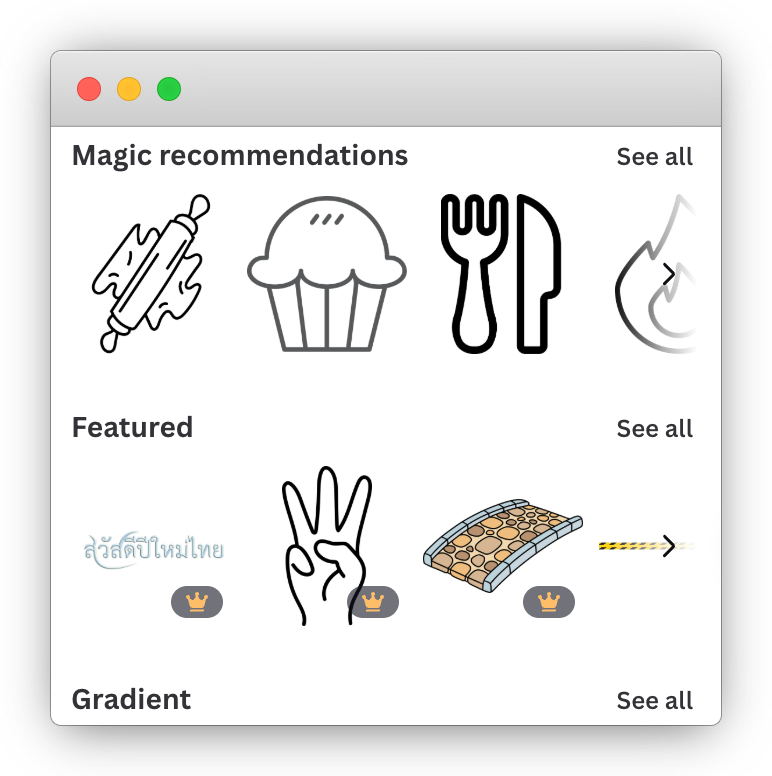
Premium templates are marked with a crown icon, while features like background removal and Magic Resize require Canva Pro. You can absolutely make a strong recipe card for free, but those extra tools are where Canva starts nudging you toward an upgrade.
Remember that your finished card is a static file. If you spot a typo, change serving sizes, or update ingredients later, you’ll need to reopen the design and export it again. That works fine for occasional use, but it can become time-consuming if you publish recipes regularly.
Using a recipe card template in Microsoft Word
Microsoft Word can be a simple way to make recipe cards, especially if you’d rather use familiar software than an online design tool. While Word’s built-in templates can vary, a reliable option is downloading free recipe card templates from Vertex42 in 3×5 and 4×6 sizes.
The process is straightforward:
- Download the template in .docx or PDF format.
- Open it in Microsoft Word.
- Replace the sample text with your own recipe title, ingredients, and instructions.
- Save the file or print it when you’re ready.
You’ve got a few printing options depending on how polished you want the final result:
- Plain paper: Print, cut to size, then laminate if you want durability.
- Index cards: Feed cards manually through your printer if supported.
- Avery pre-cut stock: Avery 5388 for 3×5 cards (3 per sheet) or Avery 8386 for 4×6 cards (2 per sheet).
One advantage of the Word route is simplicity. After the initial template download, the whole workflow can be done offline. That makes it a practical choice if you want quick printable recipe cards without signing up for another platform.
How to create recipe cards in WordPress
If you run a food blog, one of the best programs for creating recipe cards is WordPress with a dedicated recipe plugin. This is a completely different setup from Canva or Word because your recipe card becomes live website content instead of a static image or PDF.
A Canva recipe card may look great, but it’s still just a file. A WordPress recipe card built with WP Recipe Maker can be indexed by search engines, updated at any time, and used as part of your site’s growth strategy. Different tools, different jobs.
With WP Recipe Maker, recipes are added directly inside WordPress and inserted into posts using a clean, structured layout. That means every recipe stays consistent without redesigning each card manually.
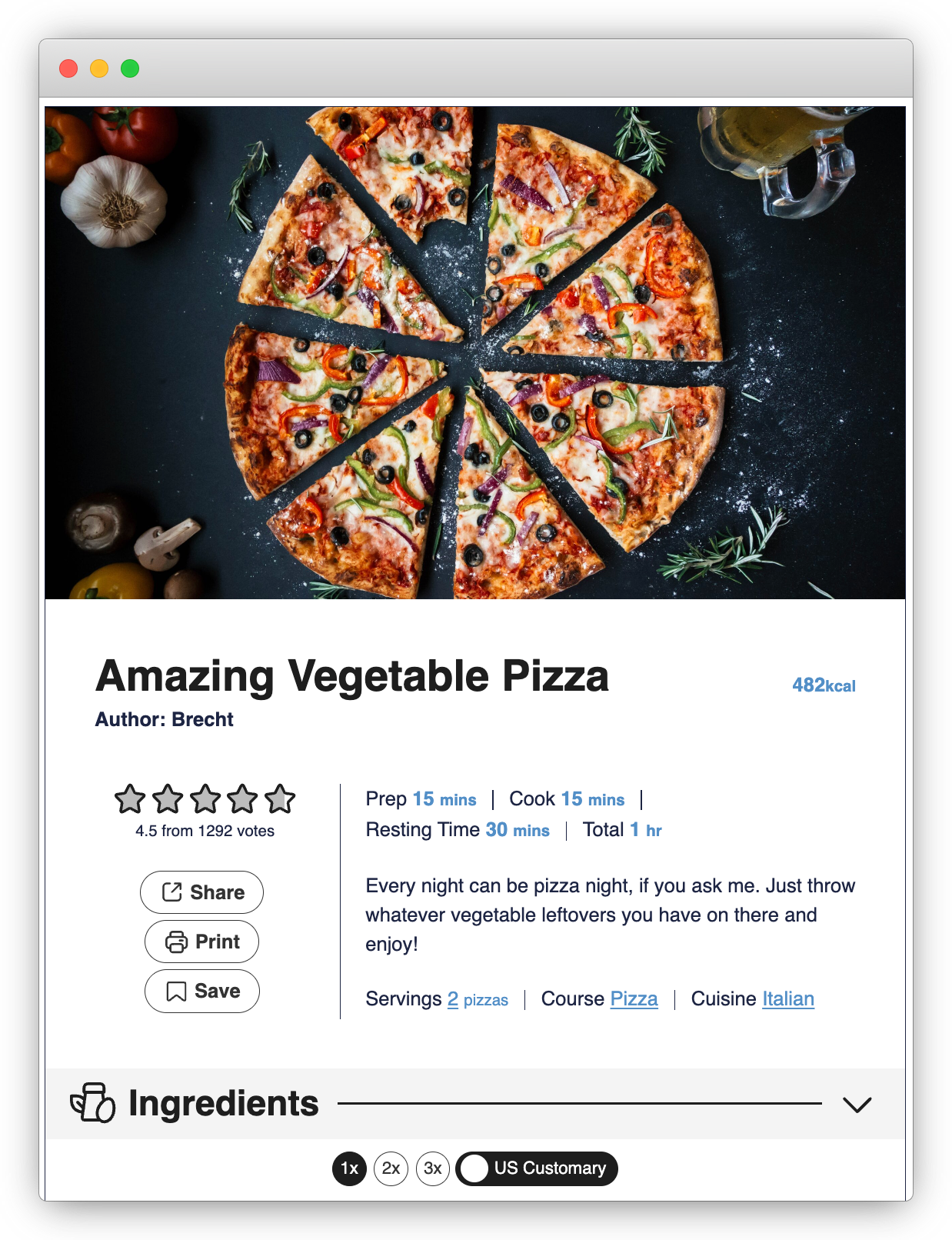
Even before upgrading, you get features that make recipe cards look polished and work better for readers:
- JSON-LD structured data automatically added in Google’s preferred format, helping recipes appear in search with photos, ratings, and cook times.
- Responsive recipe templates that work smoothly on mobile, tablet, and desktop.
- Built-in print and jump-to-recipe buttons.
- Basic style controls for labels and colors.
- Template Editor for adjusting fonts, icons, spacing, and layout blocks across every recipe at once.
That last point matters more than it sounds. Instead of fixing one card at a time, you can update the design once and apply it across your whole site instantly.
Premium plans unlock features that static recipe cards simply can’t match:
- Adjustable servings using sliders, text fields, or 1x / 2x / 3x buttons, with ingredient amounts updating automatically.
- Ingredient affiliate links so one linked ingredient can appear across multiple recipes.
- Nutrition labels with manual entry on Premium or automatic calculation on Pro.
- Unit conversion between US Customary and Metric measurements with one click.
- A Prevent Sleep Toggle that keeps the screen awake, plus a Cook Mode popup for a distraction-free cooking view.
For food bloggers publishing regularly, this can save a huge amount of time. Creating a separate Canva design for every new recipe means managing disconnected files, updating graphics manually, and missing out on SEO and interactive features. A recipe plugin replaces that workflow with one system that scales as your site grows.
WP Recipe Maker is trusted by 50,000+ active WordPress sites and holds a 5-star rating on WordPress.org, which says a lot about how widely it’s used in the food blogging space.
If you only need a one-off printable card, Canva works fine. If you want recipe cards that attract traffic, help readers cook, and support monetization, WordPress with WP Recipe Maker is the stronger long-term choice.
Printing Recipe Cards at Home
Printing recipe cards at home can look great if you use the right paper and settings. Most printing problems come from mismatched cardstock or skipping a quick test run.
Start by choosing cardstock that matches your printer type. Some paper is coated for inkjet printers, while other stock is made for laser printers. Using the wrong type can cause smudging, poor ink absorption, or even heat damage in a laser printer. Check the packaging for labels like inkjet, laser, or dual compatible before buying.
Next, adjust your printer settings before printing:
- Select cardstock, heavyweight, or the closest paper setting available.
- Set print scale to 100% so card sizes stay accurate.
- Print one test page on plain paper first to check margins and alignment.
If you’re printing double-sided recipe cards, do the fronts first. Let the ink dry fully if you’re using an inkjet printer, then reload the stack for the back side. Printers feed paper differently, so test one sheet before running the full batch. That small step can save a lot of wasted cardstock.
It’s also normal to run into minor quirks. Thicker 4×6 cards may curl slightly from roller pressure, while smaller 3×5 cards can shift a little during feeding. If that happens, flatten the cards under a heavy book or trim edges after printing if needed.
For added durability, laminate finished cards using self-seal pouches or a laminator. This works especially well for cards that will live in a kitchen drawer or recipe binder.
If you run a food blog, there’s an easier route for readers. WP Recipe Maker includes a built-in print button that creates clean printable recipe cards in one click, with options like adjustable serving sizes and image toggles. That means no separate print file for every recipe you publish.
Picking the Right Tool for Your Recipe Cards
The best program for creating recipe cards depends on how you plan to use them.
Canva is the perfect choice for stylish printable cards, whether for personal use, gifts, or a family recipe binder. It’s quick, visual, and offers easy customization.
Microsoft Word is ideal if you prefer familiar, widely-used software, no sign-up, and a workflow that can be used fully offline after the initial download.
WP Recipe Maker is a must-have if you run a WordPress food blog. It provides powerful recipe cards that can rank in search, let readers adjust servings, convert units, and support affiliate income – all without needing to design a new card for every single post!
If you’re ready to turn your recipes into professional, high-performing content on WordPress, get WP Recipe Maker and start building smarter recipe cards.